 Getting More Matches
Dating App Distance Radius: How Far Should You Search?
Choose a dating app distance radius that fits your real travel time, local dating pool, schedule, and goals without filtering out good matches.
In this article10 sections
Your dating app asks for miles or kilometers. Your real life runs on travel time.
Ten miles can mean a quick train ride in one city, an hour through traffic in another, or a difficult trip across water with no direct route. That is why copying someone else's “perfect radius” rarely works.
The right dating app distance radius is the widest area you can realistically date without resenting the trip. It should give you enough people to meet while keeping an ordinary weeknight date practical.
This guide gives you a starting range, shows how Tinder, Hinge, and Bumble may treat distance preferences differently, and explains how to test the setting without confusing a larger pool with a better profile.
Start With Travel Time, Not Map Distance
Ask one question before moving the slider:
If a promising match suggested a one-hour coffee on a tired Tuesday, how long would I willingly spend getting there one way?
Your honest answer is more useful than an arbitrary radius.
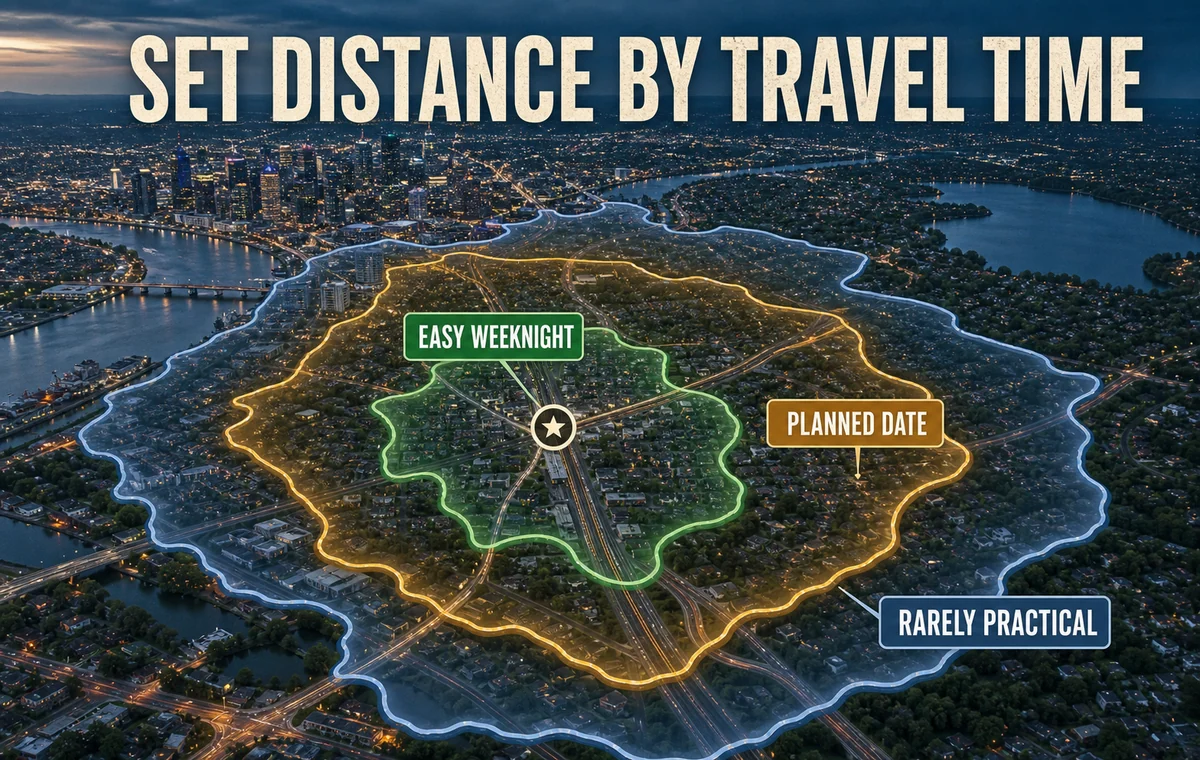
Use these travel-time bands as a decision framework:
| One-way trip | What it usually supports | Best use |
|---|---|---|
| Up to 20 minutes | Easy spontaneous or weeknight dates | Your core search area |
| 20–40 minutes | Planned weeknight or weekend dates | A reasonable expansion zone |
| 40–60 minutes | Dates that need intention and scheduling | Use when the local pool is limited or the fit is unusually strong |
| More than 60 minutes | A semi-long-distance dynamic | Choose deliberately, not by default |
These are not app benchmarks. They are a practical way to translate your schedule into a filter.
A Practical Starting Radius
If you need a number today, use the smallest range that captures roughly a 30-minute one-way trip in the directions you would actually travel.
That might begin around:
- Dense urban area: 3–8 miles or 5–13 km, especially when transit or river crossings make straight-line distance misleading.
- Suburban area: 10–20 miles or 16–32 km when most dates involve driving.
- Rural or low-density area: 25–50 miles or 40–80 km when nearby towns are part of normal life.
Treat those as starting tests, not universal rules. Open your preferred map app at the time you usually date and check routes from home, work, or a neutral meeting area. If half the radius requires a route you would never take, the circle is larger than your real dating zone.
Make Sure Distance Is the Actual Bottleneck
A wider radius cannot repair an unclear first photo or a profile that attracts the wrong people. ProfileSharp shows which profile signals are worth fixing before you expand the pool.
Radius Is Not Commute Time
Hinge's official location guide now makes an important limitation explicit: its radius is based on radial distance and does not account for travel time.
The same general problem applies whenever an app shows a distance number. Straight-line proximity does not know about:
- bridges, tunnels, water, mountains, or borders;
- traffic direction and rush hour;
- train lines and transfers;
- parking time;
- whether you are matching from home but usually date near work;
- whether a trip feels safe and practical late at night.
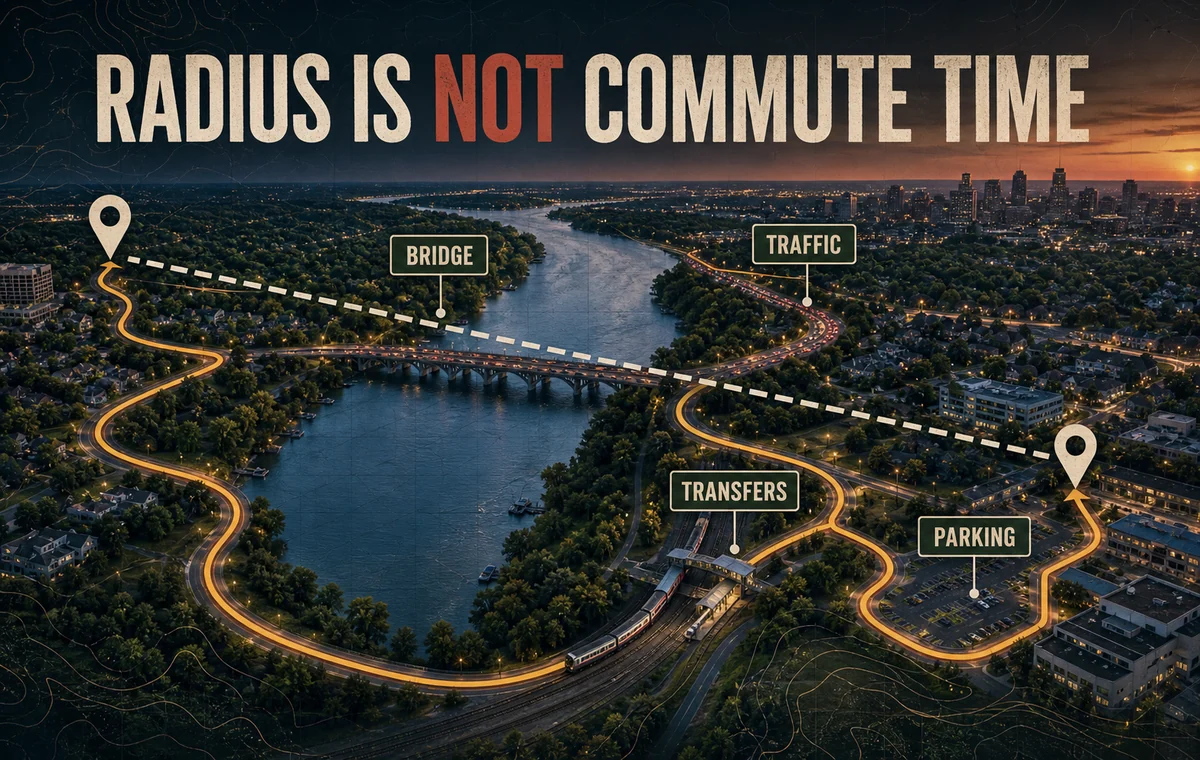
Two matches can both appear 12 miles away while one takes 18 minutes and the other takes 55. Judge the route, not just the badge.
How Tinder, Hinge, and Bumble Treat Distance
The interfaces and rules can change, so check the current settings in your app. As of August 2026, the official help pages describe these differences:
Tinder
Tinder says proximity is one factor in its recommendation system. Its Discovery Settings guide says it may show people outside your age or distance preference after nearby recommendations run out, unless the relevant dealbreaker toggle is enabled. Passport users and recent location changes can also explain why a profile appears farther away than expected.
Hinge
Hinge lets you set a maximum distance and, in current versions, choose whether to show profiles outside that preference. Its preference guide says preferences are private. Hinge also lets users set location manually and does not automatically update it every time they log in, so the profile's selected location may matter more than the person's exact device position.
Bumble
Bumble's filter guide lists distance as a basic filter in supported countries. It also offers a “Show other people if I run out” option, which can surface people outside the selected filters. Bumble warns that applying more filters reduces the number of profiles shown.
The lesson is simple: the slider may be a preference, a strict boundary, or a boundary with exceptions depending on the app and toggle. Do not assume every profile outside your number is a bug.
When to Widen the Radius
Widen it when the current limit excludes dates you would genuinely take.
Good reasons include:
- you live near the edge of a city and the natural dating center is just beyond the circle;
- you are in a low-density area where neighboring towns are part of normal errands and social life;
- your work, family, or weekly routine already takes you into another area;
- you have a narrow but meaningful compatibility requirement;
- you have reviewed your profile and the nearby pool is genuinely small.
Widen one step at a time. Moving from 10 to 15 miles teaches you more than jumping from 10 to 50 and suddenly mixing several different dating markets.
When to Narrow the Radius
Narrow it when distance repeatedly creates matches you do not want to act on.
Common signs:
- you feel disappointed as soon as you notice where a match lives;
- chats stall when either person mentions the trip;
- you keep postponing dates because the route feels like a project;
- late-night transport or driving makes the plan impractical;
- you are matching in places you visit rarely, not where you live your week.
A large match count is not useful if the logistics quietly disqualify most of it. Our guide to getting better matches instead of simply more explains how to prioritize fit over volume.
Run a Two-Week Radius Test
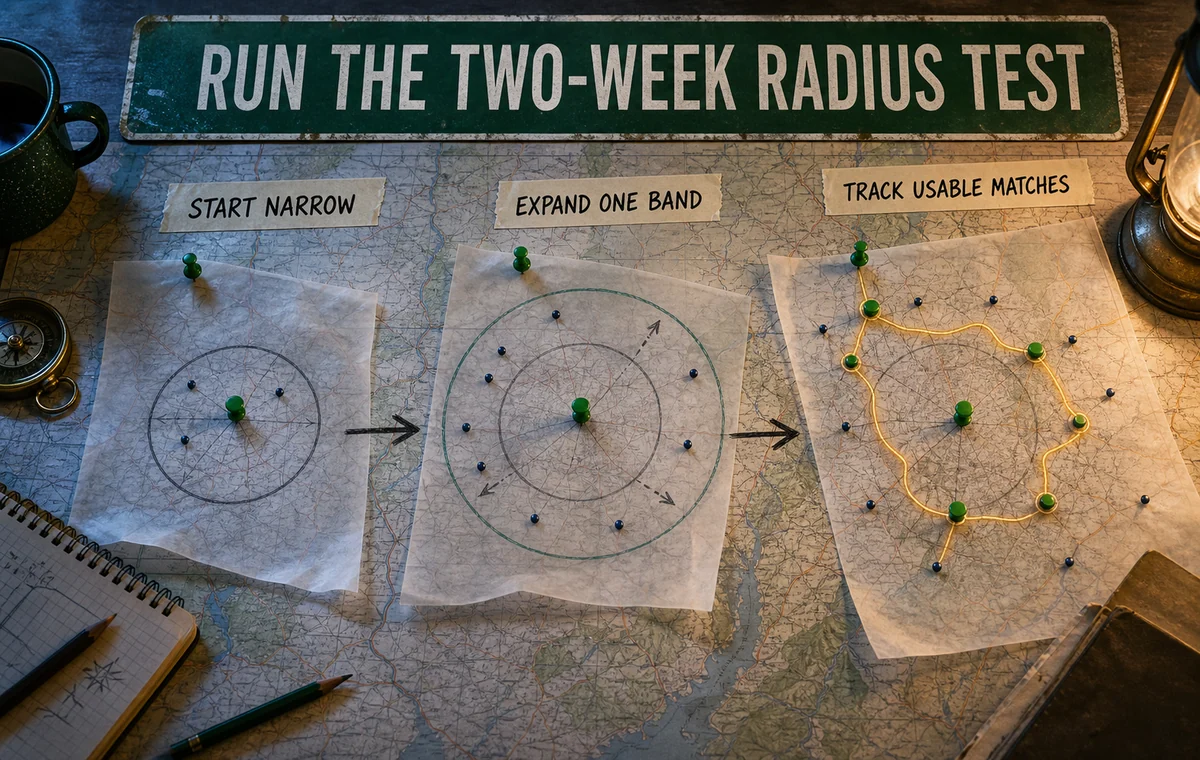
Do not change the radius every time the app feels quiet. Use a small controlled test.
Week 1: Establish the core area
Set a range based on a comfortable 20–30 minute trip. Keep your other major preferences stable. Track:
- profiles you would seriously consider;
- mutual matches;
- conversations that begin;
- dates you would realistically schedule;
- how often distance becomes an objection.
Week 2: Expand one band
Increase the radius enough to add one neighboring area, not an entire region. Keep the rest of the setup stable and track the same outcomes.
Decide based on usable matches
The larger radius wins only if it produces more people you would actually meet. Raw likes, distant matches, and conversations that fail at logistics do not make the setting better.
If you are changing the profile at the same time, follow our dating profile A/B testing guide. Otherwise you will not know whether the pool or the profile caused the change.
Expand With a Profile That Travels Well
Before showing your profile to a larger pool, make sure the photos, bio, and dating intention tell one clear story. A focused review can separate a distance problem from a profile problem.
Distance, Privacy, and Travel
Distance settings can reveal more than you intend when combined with a workplace, neighborhood, routine, or real-time travel post. Keep the public profile specific about personality but broad about access.
Hinge says users can choose a broader displayed location name and that it does not show an exact address. Bumble says GPS determines general location, while Tinder offers location-changing features to subscribers. These systems are not identical, and they can change by market.
Before traveling, decide whether you want to match at the destination, pause discovery, or keep your home area active. Do not imply that you live somewhere permanently if you are only visiting. For a fuller check, use our dating app profile privacy guide.
FAQ
What is the best distance radius for dating apps?
Start with the area you can cross in about 20–30 minutes one way during the time you normally date. Then test one wider band. The right setting depends on density, transport, schedule, and willingness to travel.
Does a larger radius get more matches?
It can expose you to more profiles, but that does not guarantee more usable matches. If neither person will make the trip, the larger pool adds activity without opportunity.
Why do dating apps show people outside my distance setting?
Some apps allow recommendations outside a preference when nearby profiles run out, unless a strict toggle is enabled. Travel features, manually selected locations, or recent location changes can also affect what you see.
Should distance be a Hinge dealbreaker?
Make it strict when you know you will not date beyond that range. Leave it flexible when nearby geography is irregular or you would consider an exceptional fit slightly outside the boundary. See our full Hinge dealbreakers guide.
Should I widen my radius if I get no matches?
Only after checking whether the nearby pool is actually exhausted and whether your profile is converting views into likes. A wider range gives the same profile more exposure; it does not automatically improve its first impression.